Remote Access Setup
By default, MCPBox is only accessible from your local network. To connect MCP clients from anywhere (e.g., claude.ai, remote Cursor instances), you can set up remote access through Cloudflare.
How It Works
MCPBox uses a Cloudflare Tunnel with Workers VPC to expose only the MCP endpoint — never the admin API. A Cloudflare Worker handles OAuth 2.1 authentication and OIDC identity verification, so every remote request is authenticated.
Remote MCP Client
       │
       ▼
Cloudflare Worker (OAuth 2.1 + OIDC)
       │
       ▼ Workers VPC (private)
Cloudflare Tunnel
       │
       ▼
MCP Gateway (:8002, /mcp only)
No inbound ports are opened on your network. The tunnel makes an outbound connection to Cloudflare.
Prerequisites
- A Cloudflare account (free tier works)
- A Cloudflare API token with these permissions:
- Account > Access: Apps and Policies > Edit
- Account > Access: Organizations, Identity Providers, and Groups > Read
- Account > Cloudflare Tunnel > Edit
- Account > Connectivity Directory > Admin
- Account > Workers Scripts > Edit
- Account > Workers KV Storage > Edit
Using the Setup Wizard
MCPBox includes a 6-step setup wizard that automates the entire process.
- Open http://localhost:3000 and go to Remote Access
- Click Start Setup Wizard
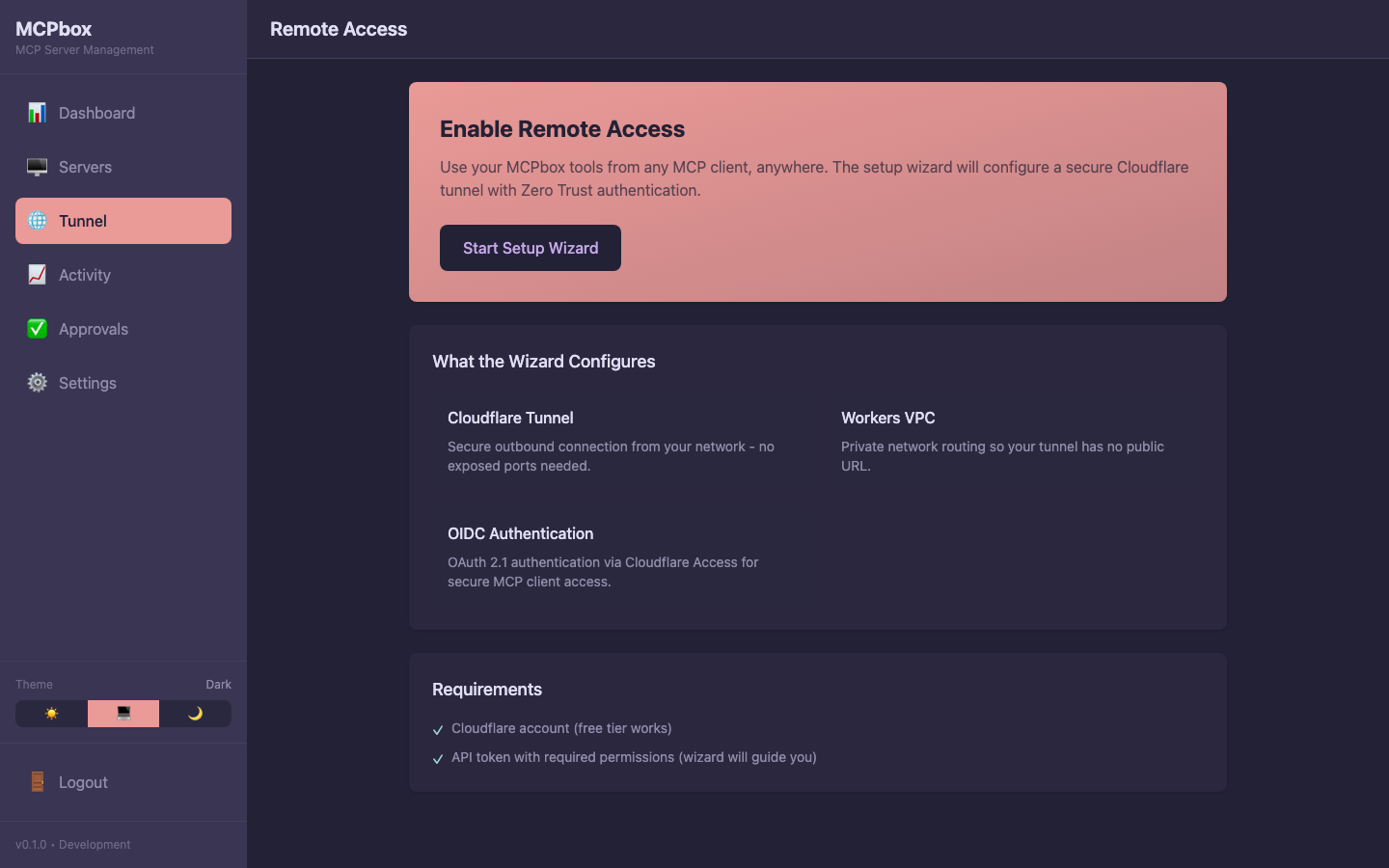 The Remote Access page with the setup wizard.
Step 1: API Token
Enter your Cloudflare API token. The wizard verifies it has the required permissions.
Step 2: Create Tunnel
Choose a tunnel name (default: mcpbox-tunnel). The wizard creates a named tunnel in your Cloudflare account.
Step 3: Create VPC Service
The wizard creates a Workers VPC service that routes traffic from the Cloudflare network to your tunnel. No user input needed.
Step 4: Deploy Worker
Choose a Worker name (default: mcpbox-proxy). The wizard deploys an OAuth 2.1 proxy Worker and generates a service token for backend authentication.
Step 5: Configure Access (OIDC)
The wizard automatically creates a Cloudflare Access for SaaS application and configures OIDC authentication. All Worker secrets (client ID, client secret, JWKS URL, etc.) are set automatically.
Step 6: Connect
Setup is complete. The wizard shows your Worker URL.
Connect Your MCP Client
Add the Worker URL to your MCP client:
{
  "mcpServers": {
    "mcpbox": {
      "url": "https://mcpbox-proxy.your-account.workers.dev/mcp"
    }
  }
}
The first time you connect, you’ll be redirected to Cloudflare Access for authentication.
Security Model
Remote access has 10 security layers:
- OAuth 2.1 — All MCP requests require a valid OAuth token
- OIDC upstream — User identity verified via Cloudflare Access
- id_token verification — RS256 signature, issuer, audience, nonce, expiration checks
- Path validation — Only
/mcpand/healthare accessible through the Worker - CORS whitelist — Restricted to known MCP client domains
- Workers VPC — Private binding, no public tunnel URL
- Service token — Defense-in-depth header from Worker to gateway
- Gateway token validation — Constant-time comparison
- Docker network isolation — Internal container networks
- Local-only admin — Frontend and backend bound to 127.0.0.1
Troubleshooting
Tunnel not connecting:
docker compose logs cloudflared
Look for “connection error” or “token” messages. Re-running the setup wizard regenerates the tunnel token.
403 on MCP requests: The service token may be out of sync. Re-run the wizard’s Step 5, or:
./scripts/deploy-worker.sh --set-secrets
docker compose restart mcp-gateway
Authentication redirect loop: Verify you’ve configured an identity provider in the Cloudflare Zero Trust dashboard (e.g., Google, GitHub, email OTP).