Quick Start
After installing MCPBox, follow these steps to set up your admin account and get familiar with the interface.
Create Your Admin Account
- Open http://localhost:3000 in your browser
- You’ll be prompted to create an admin account — enter a username and password
- This is a one-time setup. The credentials are stored locally and used only for the admin panel.
Tour the Dashboard
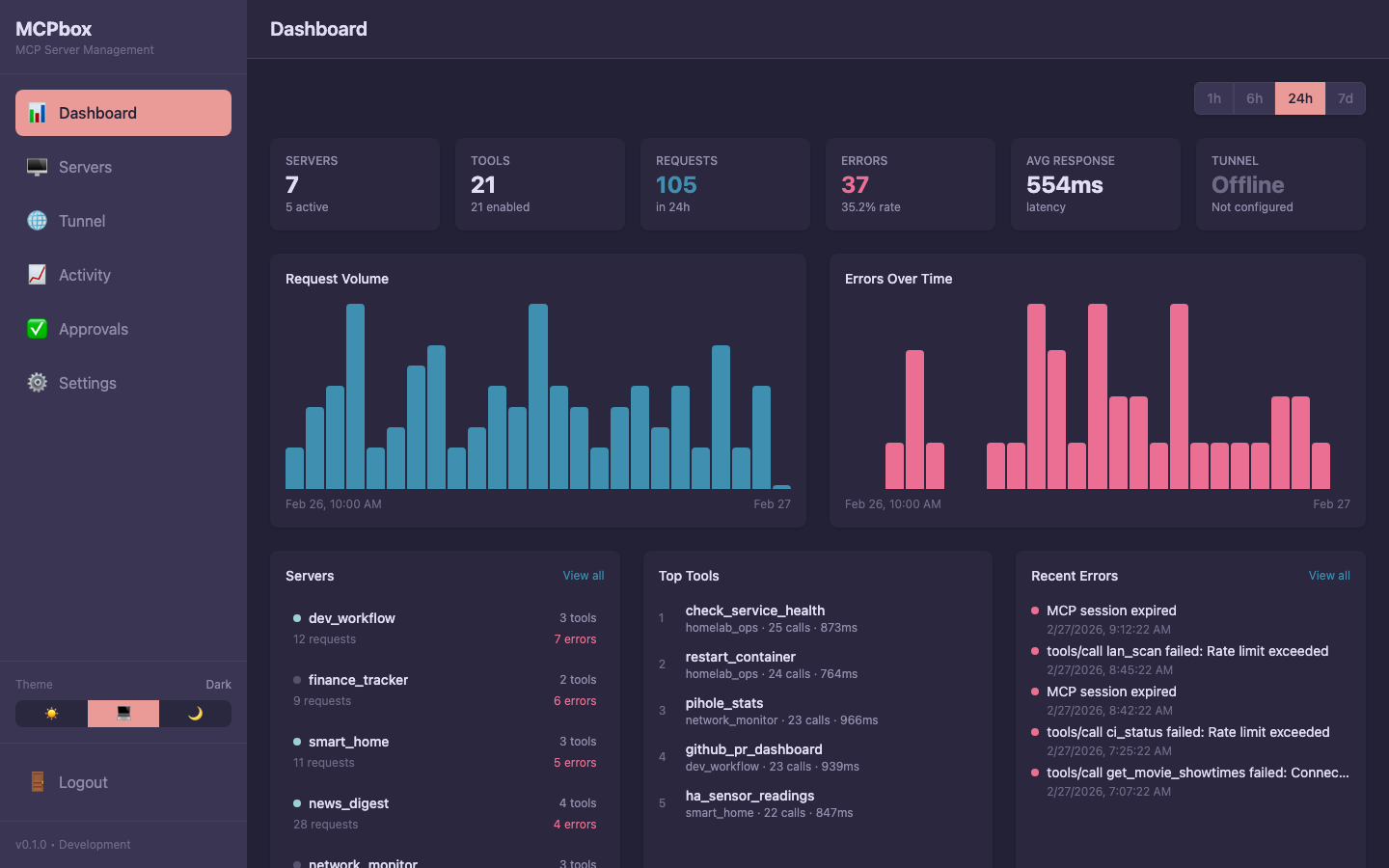
After logging in, you’ll see the dashboard with:
- Server count — How many MCP servers exist (and how many are running)
- Tool count — Total tools created and how many are approved
- Recent activity — A live feed of actions (tool creations, approvals, executions)
Key Pages
| Page | What it does |
|---|---|
| Servers | View and manage MCP servers. Start/stop servers, see their tools. |
| Approvals | Review pending tool publish requests, module requests, and network access requests. |
| Activity | Full activity log with search and filtering. |
| Remote Access | Cloudflare setup wizard for remote MCP client access. |
What Happens Next
Once you connect an MCP client, the LLM will discover 28 mcpbox_* management tools automatically. These let it:
- Create servers to organize tools
- Write Python code that becomes a permanent tool
- Submit it for your approval
- Test the code in the sandbox (after you approve)
- Start the server so the tool is available
You stay in control — nothing runs until you approve it in the Approvals page.