Creating Your First Tool
This guide walks through the full lifecycle of an MCPBox tool — from asking your LLM to build something, to approving it, to using it.
The Tool Lifecycle
LLM creates tool (draft) → LLM requests approval →
Admin approves → LLM tests it → LLM starts server → Tool is live
By default, tools must be approved before they can be tested. This ensures the admin controls what code runs in the sandbox. If you prefer to let the LLM test tools before approval, change the Tool Approval Mode to auto_approve in Settings.
Step-by-Step Example
Ask your LLM something it can’t do yet. For example:
“Is Claude having issues right now? Build a tool to check.”
The LLM will use the mcpbox_* management tools to:
1. Create a Server
mcpbox_create_server(name="news", description="News and status tools")
Servers are containers that group related tools together.
2. Write the Tool Code
mcpbox_create_tool(
  server_id="<uuid>",
  name="claude_status",
  description="Check Anthropic service status",
  python_code='''
async def main() -> dict:
    """Check the Anthropic status page."""
    resp = await http.get("https://status.anthropic.com/api/v2/status.json")
    data = resp.json()
    return {
        "status": data["status"]["description"],
        "indicator": data["status"]["indicator"]
    }
'''
)
The tool is created in draft status — it can’t be used yet.
3. Request Approval
mcpbox_request_publish(
  tool_id="<uuid>",
  notes="Fetches Anthropic status page. Read-only HTTP request."
)
The tool moves to pending_review status.
4. Admin Approves
Open the MCPBox admin UI at http://localhost:3000 and go to the Approvals page. You’ll see the pending tool with:
- Tool name and description
- The full Python source code
- The LLM’s notes explaining what the tool does
Review the code and click Approve (or Reject with a reason).
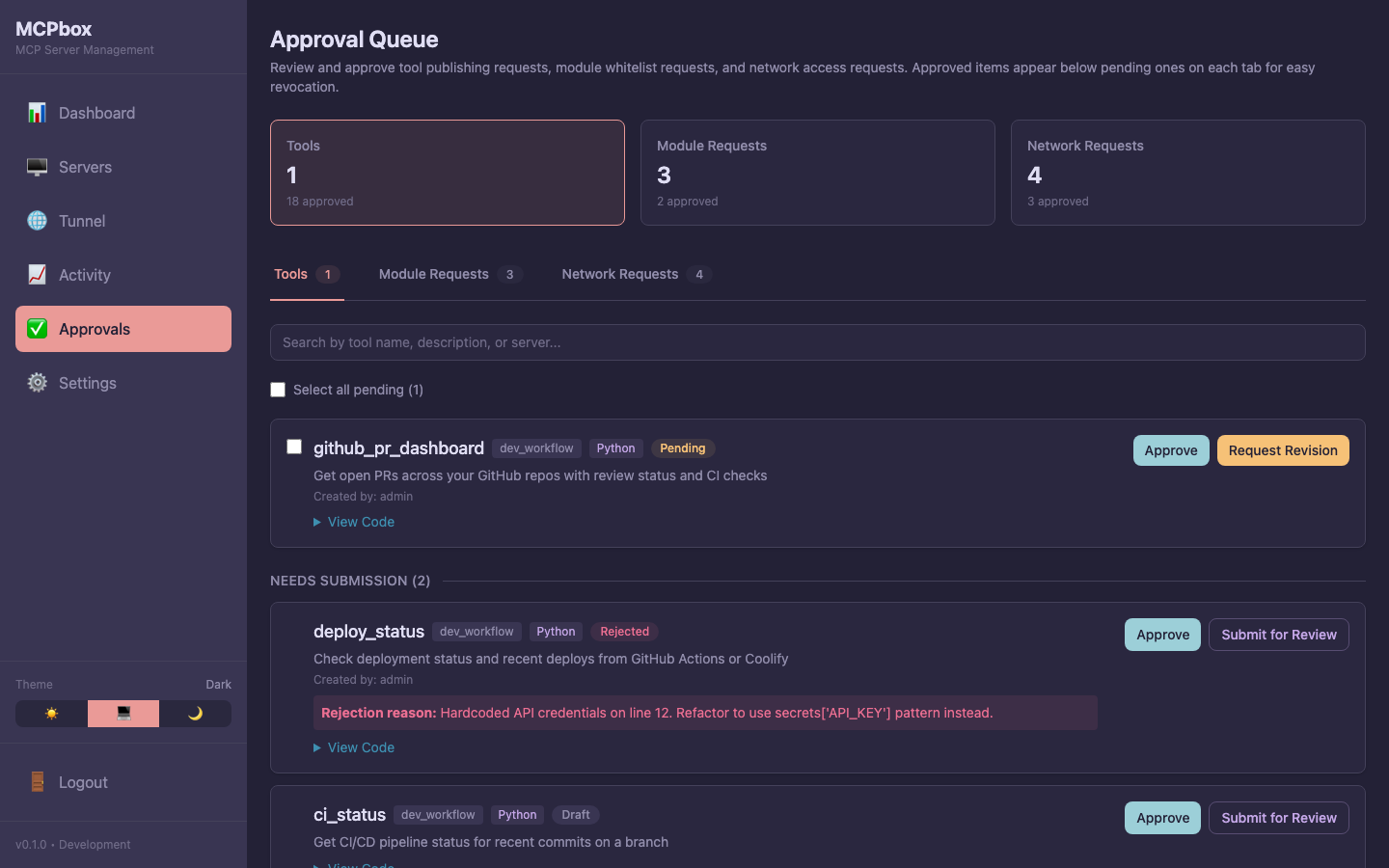 The Approvals page showing pending, needs-submission, and approved tools.
5. Test the Code
mcpbox_test_code(tool_id="<uuid>")
Now that the tool is approved, the LLM can test it in the sandbox. This runs the code and returns the result. If the test fails, the LLM can update the code — but note that code changes reset the approval status back to pending_review, requiring another approval before testing again.
6. Start the Server
mcpbox_start_server(server_id="<uuid>")
7. Use the Tool
The tool is now available. The LLM (or any connected MCP client) can call claude_status directly:
claude_status()
→ {"status": "All Systems Operational", "indicator": "none"}
The tool persists across sessions. Next time anyone asks about Claude’s status, the LLM just calls it — no rebuilding needed.
What’s Available in Tool Code
Every tool is an async def main() function with these globals:
| Global | Description |
|---|---|
http | SSRF-protected HTTP client (await http.get(url), http.post(url, json=...)) |
json | The json module |
datetime | The datetime module |
arguments | Dict of input arguments |
secrets | Read-only dict of server secrets (e.g., secrets["API_KEY"]) |
Parameters of main() become the tool’s input schema automatically. Return values become the tool’s output.
Additional Python modules can be imported if they’re on the allowed list. Need a module that’s not allowed? The LLM can request it with mcpbox_request_module, and you approve it in the admin UI.
Next Steps
- Admin Approval Workflow — Learn more about the review process
- Server Secrets — Give tools access to API keys