Admin Approval Workflow
MCPBox requires human approval before any LLM-created code can run in production. This keeps you in control of what executes on your system.
What Needs Approval
Three types of requests require admin review:
| Request Type | What the LLM does | What you review |
|---|---|---|
| Tool publish | mcpbox_request_publish | The tool’s Python code, description, and the LLM’s notes |
| Module whitelist | mcpbox_request_module | Which Python module is being requested and why |
| Network access | mcpbox_request_network_access | Which external host and port the tool wants to reach |
Tool States
draft → pending_review → approved
                       → rejected (LLM can revise and re-submit)
- Draft — Just created, not visible to users, can be tested
- Pending review — Submitted for approval, appears in the Approvals page
- Approved — Can be registered with the sandbox and used
- Rejected — Not usable. The LLM receives the rejection reason and can revise the code.
Updating a tool’s code after approval resets it to pending_review. This prevents approved tools from being silently changed.
Reviewing in the Admin UI
- Go to http://localhost:3000 and navigate to Approvals
- Pending requests are grouped by type (tools, modules, network access)
- For each tool request, you’ll see:
- The full Python source code
- The tool’s description
- Notes from the LLM explaining the purpose
- Click Approve or Reject (with an optional reason)
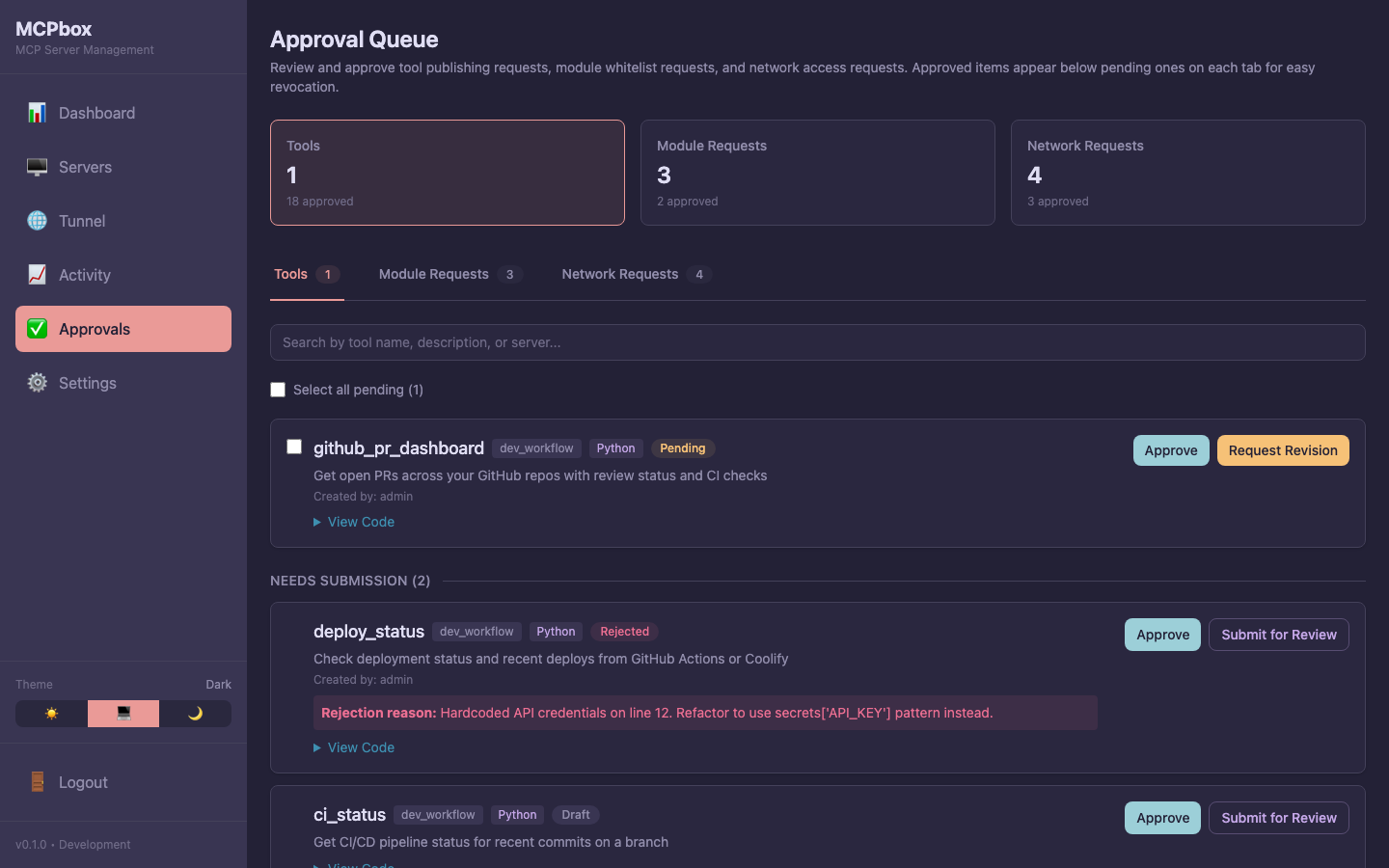 Tool approval queue with pending, rejected, and approved tools.
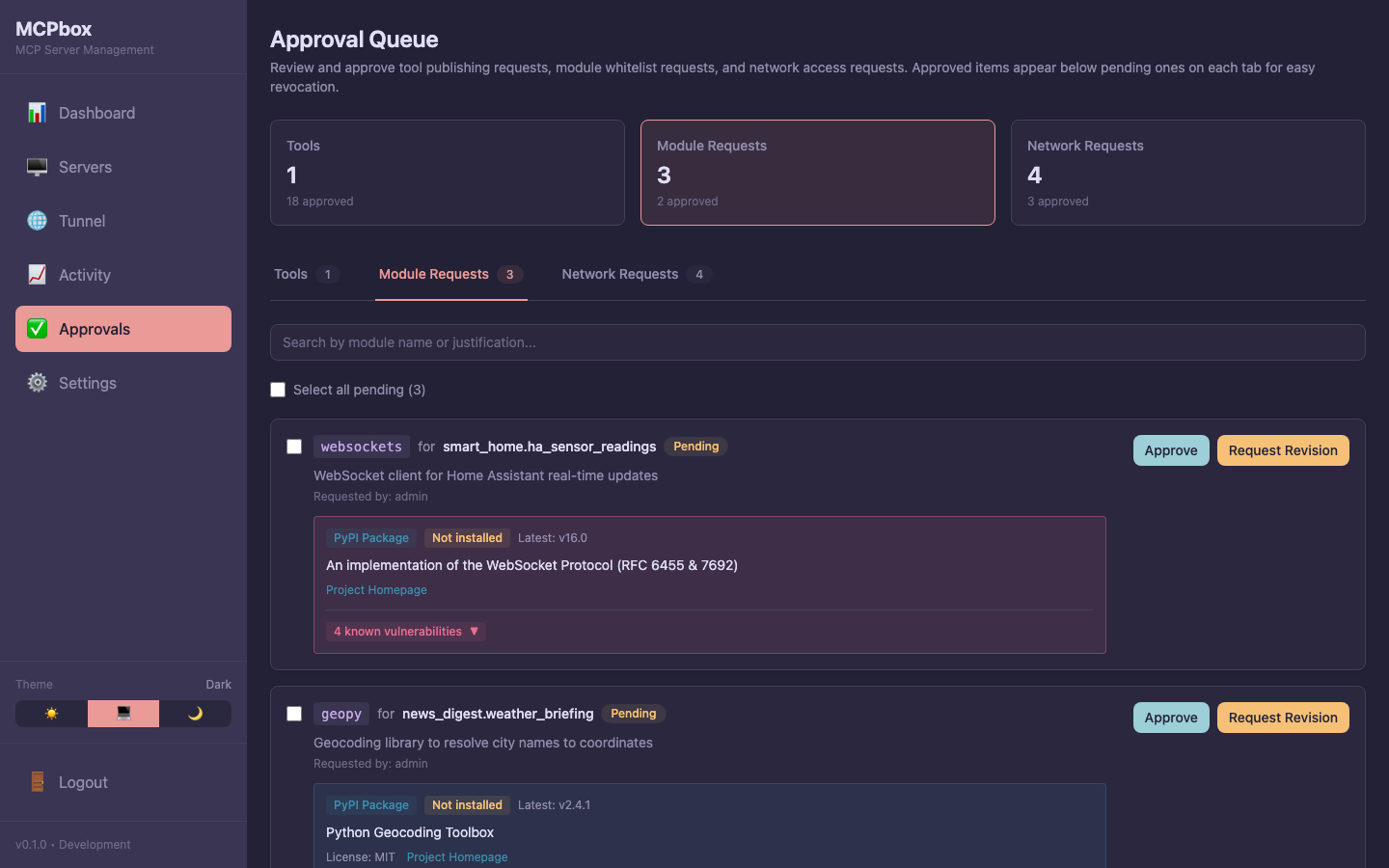 Module whitelist requests showing package details and PyPI metadata.
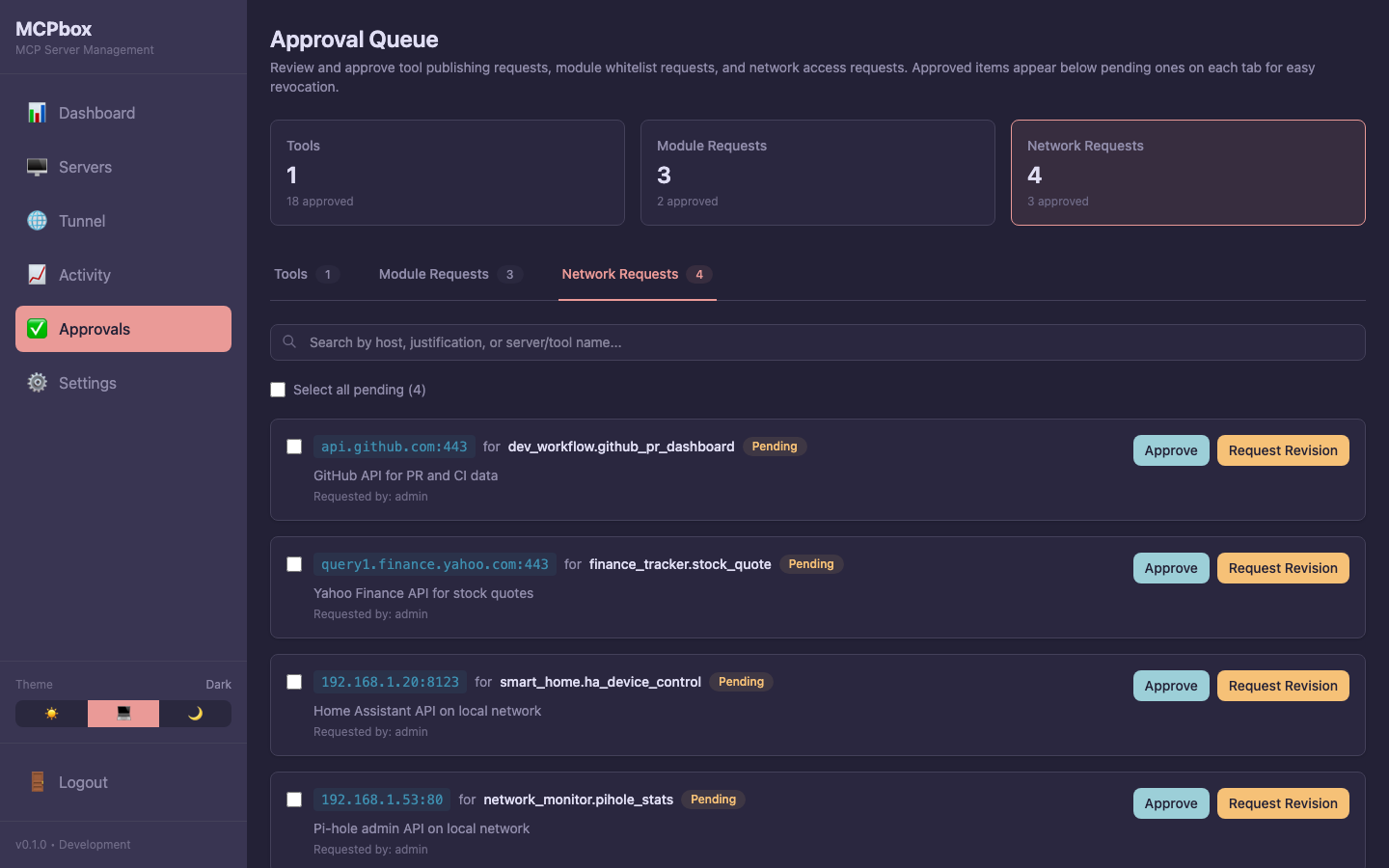 Network access requests for external hosts and ports.
What to Look For
When reviewing tool code:
- Network calls — Does it only contact expected APIs? The
httpclient blocks private IPs and metadata endpoints, but verify the URLs are reasonable. - Data handling — Does it process sensitive data appropriately?
- Module imports — Are the imported modules appropriate for the task?
- Secrets usage — Does it use
secrets["KEY"]only for expected keys?
Module and network access requests include a justification from the LLM explaining why the access is needed.
After Approval
Once approved, the tool becomes available when its server is started. The LLM calls mcpbox_start_server to register the server’s tools with the sandbox.
If you later want to revoke access, you can stop the server from the Servers page, or delete the tool entirely.